





 Pyas calendars
The dialog your users connect their calendars in
PyasConnect shows Google Calendar, Outlook and Zoom, sends each person to the provider's own consent screen, and hands your app the connected account. On Pyas Auth, they approve Pyas Auth, which Google, Microsoft and Zoom have already verified, so there is no OAuth or app review for you to wait on.
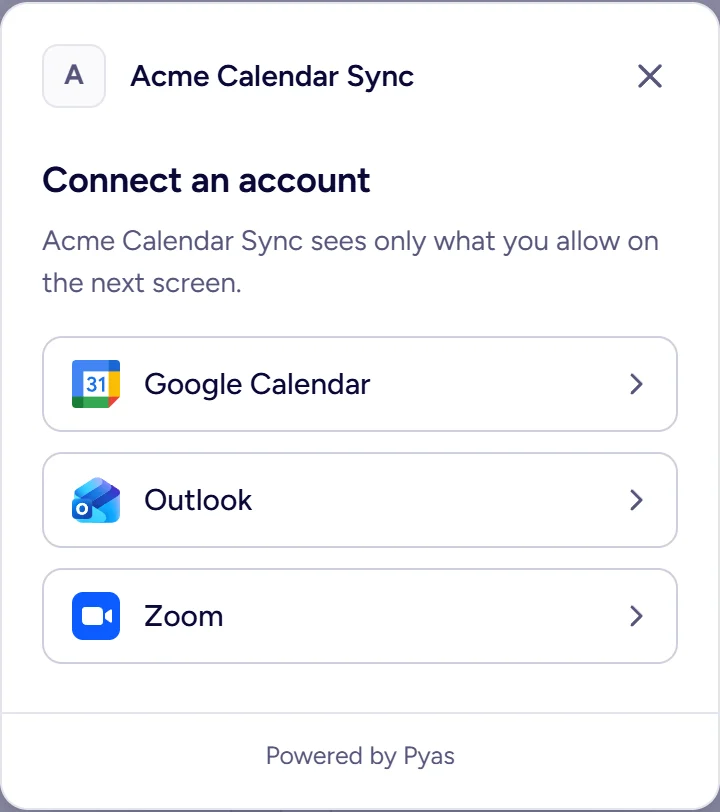
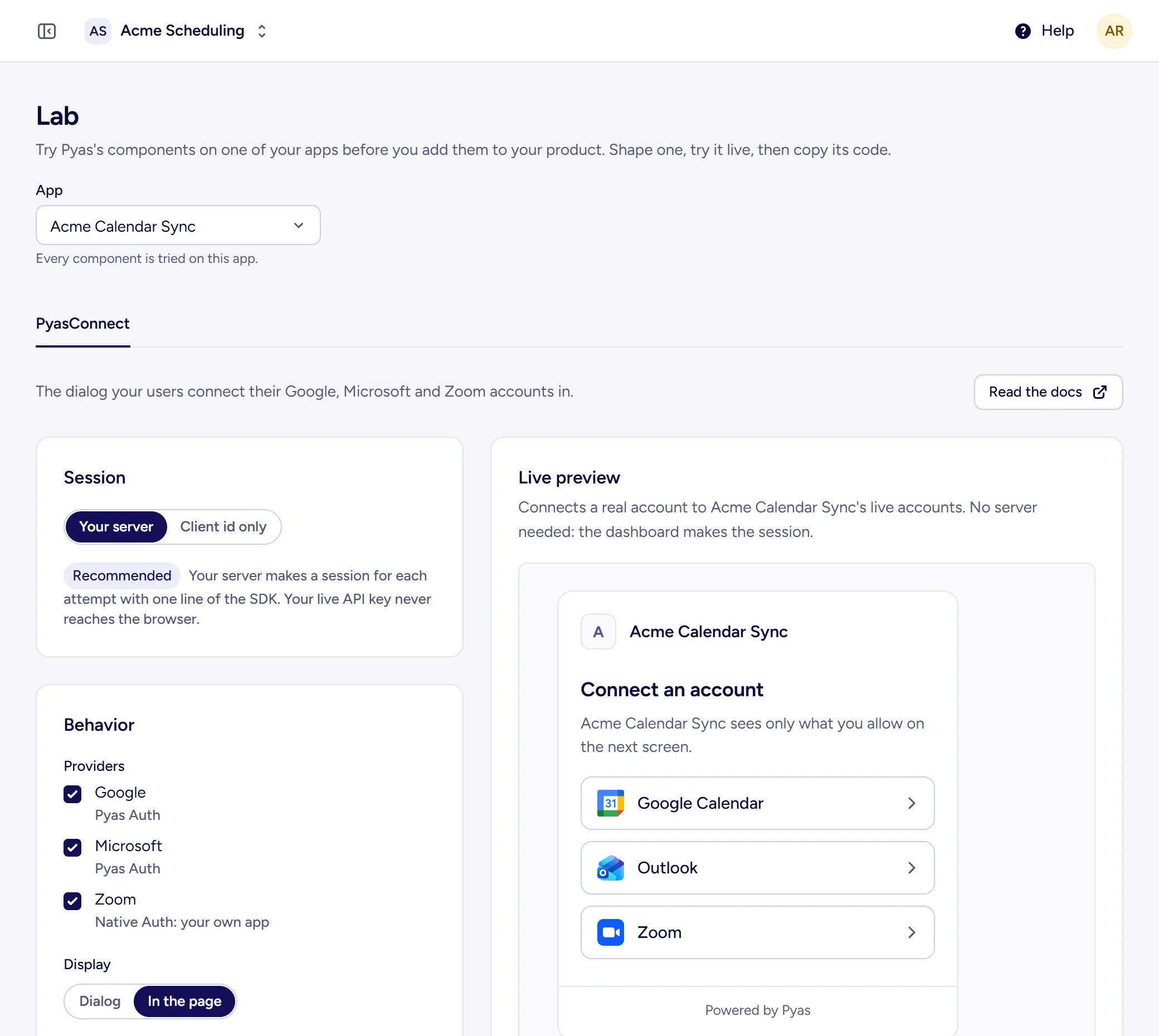
Shape it, try it live, copy the code
The dashboard's Lab builds PyasConnect on one of your apps: pick the providers, the display, the theme and the text, connect a real account in the live preview, then copy code written for your app with only what you changed.
Fits your product, not the other way round
- React, Vue, Angular or HTML@pyas/connect-react, @pyas/connect-vue, @pyas/connect-angular, or @pyas/connect for any page.
- A dialog or in the pageOpen it as a dialog over your page, or place it inside a section of your own.
- Popup or redirectThe provider's sign-in opens in a small window over your page, or takes the whole tab and comes back.
- Your lookYour accent, text, background and border colors, corners and font, in light, dark or following the visitor. Every line of text can be changed.
- Your button or oursUse PyasConnect's button, or hide it and open the dialog from one of yours.
- Your user, on the accountYour server can pass your own ID for the person, so you find their accounts by it later.
A component and one line on your server
Your server makes a connect session for each attempt with one line of the SDK, so your live API key never reaches the browser.
<script setup>
import { PyasConnect } from '@pyas/connect-vue'

// A fresh session from your server for every attempt.
async function getSessionToken() {
  const res = await fetch('/api/pyas-session', { method: 'POST' })
  return (await res.json()).token
}

function onConnected(account) {
  // Keep account.accountId with your user.
}
</script>

<template>
  <PyasConnect :get-session-token="getSessionToken" @connected="onConnected" />
</template>When a connection breaks
People revoke access and change passwords. Pyas tells you which account broke and why, and you bring the person back without them signing in to anything new.
- In your product
- Open PyasConnect with the account's ID and the person reconnects in your own page, keeping the same account ID.
- Without PyasConnect
- Build your own flow on the same endpoints: get a sign-in URL with
GET /v2/connect/oauth, then connect the account withPOST /v2/connect/accounts.